Log in and enroll your credit card
Members can now enjoy an improved credit card experience in Online & Mobile Banking. It’s another way we support your financial goals.
Get Started
To begin, log in to Online & Mobile Banking the way you do today. Please note, if you are using the VyStar Mobile app to service your credit card, you will need to download/use the newest VyStar Mobile app version from the App Store or Google Play Store. Additionally, you may need to clear your cache.
Then follow these simple steps:
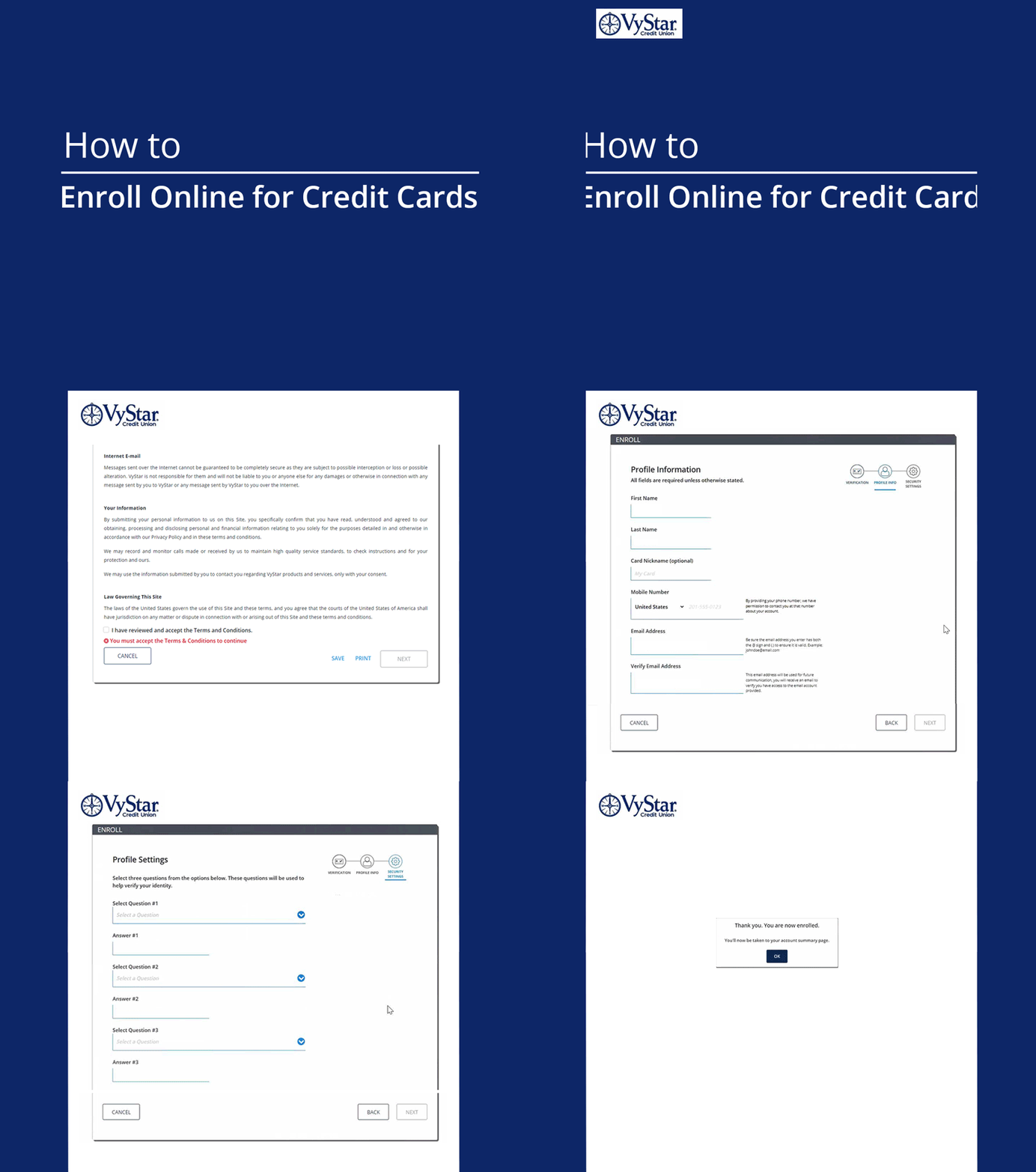
After logging in, choose your credit card.
Be sure to read the terms and conditions and check the box to indicate that you have reviewed and accept.
Once accepted, enter the last 4 digits of the primary cardholder's social security number, date of birth and zip code.
You can also assign a nickname to your card by updating the Card Nickname field. Choosing a nickname is optional.
Enter your mobile number and select Next.
Select three security questions and enter answers for each.
Submit.
You’ll receive a message confirming you have successfully completed enrollment.
There are two ways to enroll a secondary card:
While signed into the credit card experience, click Services, authenticate, and click Add Card to add the second card, or
Log out of the credit card experience, click the back arrow at the top left, and on the Online & Mobile banking accounts page, select the second card to enroll it
How-to Guide
Watch the video below for a step-by-step look at how to complete enrollment: